
Define Shortcut Key
You may see a textual or pictorial view of defining a shortcut key.
How to define a shortcut key for PrintDeskTop in Windows 11 and Windows 10:
- Download and install PrintDeskTop.
- Click the Windows Start button and type PrintDeskTop.
- Right-click PrintDeskTop under Best match and click Open file location.
- In the folder that opens, right-click the PrintDeskTop icon (
 ) and click Properties.
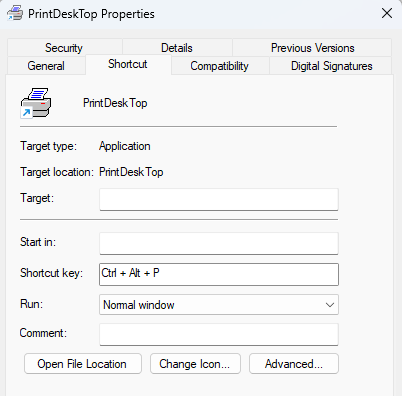
 - Click the Shortcut tab.
- Click inside the Shortcut key box.
- Press the key or combination of keys you want to use to have PrintDeskTop print your screen. Ctl+Alt+p is a good choice.
- Click OK.
- That's it!
- If desired, define a different shortcut key for landscape printing. Type “PrintDeskTop (landscape)” instead of “PrintDeskTop” in step 2 above and perhaps choose Ctl+Alt+L as shortcut key choice.
To print your screen, press the key(s) you defined in step 7 above. If you chose Ctl+Alt+p, then press and hold the Ctl and Alt and p keys simultaneously and your screen should print.
Older Windows (XP, Vista, 7): click Start, then All Programs, then the PrintDeskTop link, and right-click the PrintDeskTop icon; then continue from step 4 above (Properties). The pictorial view shows these older screens.
An alternate solution is to use the freeware utility HoeKey.